
When it comes to protecting your website, choosing the best WordPress backup plugin is essential. Backups safeguard your content, themes, plugins, and database from accidental deletion, hacks, or server failures. With so many options available, it can be overwhelming to know which plugin offers the right balance of reliability, ease of use, and affordability. In this guide, we’ll compare the top WordPress backup plugins, helping you find the solution that keeps your website secure and fully recoverable.
Table of Contents
Top WordPress Backup Plugins to Compare
When choosing the best WordPress backup plugin for your website, it’s important to compare the leading options based on reliability, ease of use, and features. Below are the top backup plugins worth considering. These tools help you protect your site from data loss due to hacks, server issues, or updates gone wrong.
🧰 1. UpdraftPlus
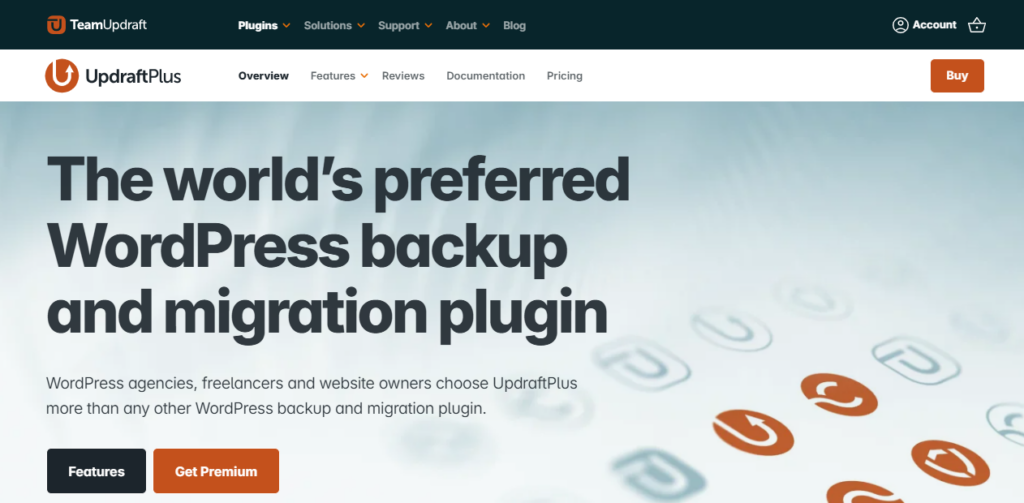
UpdraftPlus remains one of the most popular WordPress backup plugins thanks to its simplicity and powerful features. It lets you schedule automatic backups, store files in cloud services like Dropbox and Google Drive, and restore with a click.
Best for: Beginners and site owners who want a reliable, easy-to-use solution.
Key Features:
- Manual and scheduled backups
- Cloud storage integration
💾 2. BackupBuddy
BackupBuddy has been around for years and is widely trusted for site backups and migrations. It offers complete backups, scheduled backups, and offsite storage options.
Best for: Users looking for a premium plugin with built-in migration and staging features.
Key Features:
- Scheduled backups
- Remote storage (Dropbox, FTP, etc.)
☁️ 3. Jetpack Backup (formerly VaultPress)
Jetpack Backup is a cloud-managed solution that backs up your WordPress site in real time. It’s part of the Jetpack suite and is ideal if you want hands-off, secure backups.
Best for: Websites needing real-time protection and automated restores.
Key Features:
- Real-time backups
- Cloud storage

🔄 4. BackWPup
BackWPup is a flexible free backup plugin that supports multiple storage destinations like Dropbox and Amazon S3. It also offers database optimization.
Best for: Users on a budget who still want flexible storage options.
Key Features:
- Scheduled backups
- Many storage options

⭐ 5. Duplicator
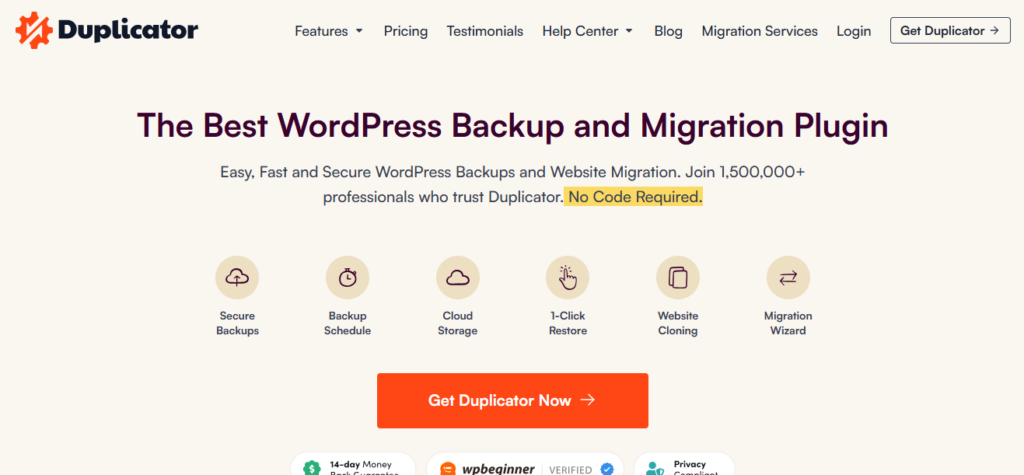
While Duplicator is primarily known as a migration tool, it’s also excellent for backups. You can create full copies of your site and store them locally or on cloud services.
Best for: Users who need both backups and migration capabilities.
Key Features:
- Site cloning
- Backup packages
📊 Bonus: Other Plugins Worth Noting
🧠 How to Choose the Best WordPress Backup Plugin
When comparing plugins, keep these factors in mind:
- Backup frequency: How often does it automatically back up your site?
- Restore options: How easy is it to restore a backup?
- Storage destinations: Does it support cloud storage?
- Performance: Does it affect site speed?
- Support & updates: Is support responsive and are updates regular?
Comparison Table: Best WordPress Backup Plugin
Below is a clear comparison of the best WordPress backup plugin options. This table highlights key features to help you quickly identify the right solution for your needs.
| Plugin Name | Free Version | Automatic Backups | Cloud Storage Support | Restore Ease | Best For |
|---|---|---|---|---|---|
| UpdraftPlus | ✅ | ✅ (Scheduled) | Dropbox, Google Drive, Amazon S3, more | ⭐⭐⭐⭐ | Beginners & Most Users |
| BackupBuddy | ❌ | ✅ (Scheduled) | Dropbox, FTP, Email | ⭐⭐⭐⭐ | Premium Users & Migrations |
| Jetpack Backup | ❌ | ✅ (Real-Time) | Cloud | ⭐⭐⭐⭐⭐ | Real-Time Protection |
| BackWPup | ✅ | ✅ (Scheduled) | Dropbox, S3, FTP | ⭐⭐⭐ | Flexible Free Option |
| Duplicator | ✅ | ❌ | Local & Cloud | ⭐⭐⭐⭐ | Migrations & Backups |
| WP Time Capsule | ❌ | ✅ (Incremental) | Dropbox, Google Drive | ⭐⭐⭐⭐ | Incremental Backup Fans |
| BlogVault | ❌ | ✅ (Automatic) | Cloud | ⭐⭐⭐⭐⭐ | Enterprise & Agency Sites |
What the Comparison Shows
- Free Version Availability – Some plugins like UpdraftPlus and BackWPup offer free versions, which are great for beginners or small sites.
- Automatic Backups – Real-time backups (as offered by Jetpack Backup) provide the highest level of protection, especially for sites that update frequently.
- Cloud Storage Support – Offsite storage (Dropbox, Google Drive, etc.) ensures your backups are safe even if your hosting server goes down.
- Ease of Restore – One-click restore features save time and reduce stress when recovering your site.
Quick Recommendations Based on Comparison
- Best overall backup solution: UpdraftPlus — balanced features, free version, cloud support.
- Best for real-time backups: Jetpack Backup — continuously protects your site.
- Best for migrations + backups: Duplicator — combines backup with powerful site cloning.
- Best free flexible option: BackWPup — many storage options at no cost.
- Best for professional use: BlogVault — robust backups and enterprise features.
Pricing & Plans — Best WordPress Backup Plugin
Pricing plays a major role when choosing the best WordPress backup plugin, especially if you’re managing a business website or multiple sites. Below is a clean, easy-to-understand breakdown of what you can expect from free and paid plans—with no external links.
Free vs Paid Backup Plugins
Most of the best WordPress backup plugin options follow a similar pricing structure:
- Free plans
Basic manual or scheduled backups, limited storage options, and no priority support. - Paid plans
Automatic backups, cloud storage integrations, faster restores, and premium support.
Free versions are suitable for small blogs or test sites. Paid plans are strongly recommended for business websites, WooCommerce stores, and high-traffic blogs.
Pricing Breakdown of Top Plugins
UpdraftPlus
- Free version available
- Premium plans start at around $70 per year
- Paid plans unlock more cloud storage options, advanced scheduling, and multisite support
Best for: Users who want strong features without a monthly subscription.
Jetpack Backup
- No free backup plan
- Pricing starts at around $5 per month (billed annually)
- Higher plans include real-time backups and longer backup history
Best for: Sites that need continuous, hands-off backup protection.
BackWPup
- Free version available with limited features
- Premium plans start at around $69 per year
- Paid plans include easier restores and priority support
Best for: Users looking for an affordable upgrade from a free backup plugin.
Duplicator
- Free version available
- Paid plans start at around $49 per year
- Premium plans add scheduled backups, cloud storage, and installer recovery
Best for: Users who want both backups and site migration tools.
BlogVault
- Premium-only solution
- Pricing starts at around $149 per year
- Includes real-time backups, staging, and security monitoring
Best for: Agencies and mission-critical websites.
WP Time Capsule
- Limited free plan
- Paid plans start at around $49 per year
- Focuses on incremental backups to reduce server load
Best for: Performance-conscious site owners.
Quick Pricing Comparison
| Plugin | Free Version | Starting Price |
|---|---|---|
| UpdraftPlus | ✅ | ~$70/year |
| Jetpack Backup | ❌ | ~$5/month |
| BackWPup | ✅ | ~$69/year |
| Duplicator | ✅ | ~$49/year |
| BlogVault | ❌ | ~$149/year |
| WP Time Capsule | ✅ | ~$49/year |
How to Choose the Right Plan
- Choose free plans only for low-risk or personal sites
- Go for annual plans if you want better value
- Pick real-time or incremental backups if your site changes often
Ease of Setup & Use — Best WordPress Backup Plugin
When choosing the best WordPress backup plugin, ease of setup and everyday usability are essential — especially for beginners or non-technical site owners. A plugin may offer powerful features, but if it’s difficult to set up or confusing to use, you’re less likely to take full advantage of it.
Below, we break down what you should look for and how the top backup plugins compare in terms of simplicity and user experience.
What Easy Setup Looks Like
A backup plugin with a smooth setup should:
- Install and activate like any other WordPress plugin
- Provide an intuitive onboarding or setup wizard
- Offer clear instructions for connecting cloud storage
- Let you schedule backups with just a few clicks
- Make restores straightforward and fast
UpdraftPlus — Simple and Beginner-Friendly
UpdraftPlus stands out for its user-friendly interface. After installation, you’re guided through basic settings such as backup schedule and storage location without confusion. Most essential features are accessible from the main dashboard.
Why it’s easy:
- Clean, organized layout
- Helpful tooltips and clear labels
- One-click backup button
Jetpack Backup — Minimal Setup
Jetpack Backup integrates closely with WordPress and doesn’t require complex configuration. Once connected to your WordPress.com account, the plugin handles backups automatically with minimal input from you.
Ease features:
- No complex cloud service setup
- Automatic backups without extra configuration
- Simple dashboard status indicators
BackWPup — Flexible but Slightly Technical
BackWPup works well but can feel more technical during setup, especially when linking to external storage like Amazon S3 or Dropbox. The backup schedule setup is powerful, but some users may need extra time to understand all settings.
Ease features:
- Standard WordPress UI
- Backup scheduler
- Multiple storage options (requires setup for each)
Duplicator — Clean Setup With Migration Focus
Duplicator installs and works like most plugins, but its emphasis on packaging and migration can feel slightly different compared to traditional backup plugins. For basic backups, the setup is simple; for scheduled backups, the premium version adds clear scheduling options.
Ease features:
- Step-by-step package builder
- Simple restore procedures
- Intuitive interface for backups
BlogVault — Hands-Off Backup Management
BlogVault runs external to your WordPress dashboard and provides an easy, centralized interface for backups, restores, and even staging sites. The setup is largely automatic once you connect your site.
Ease features:
- Automatic setup in many cases
- Clean external dashboard
- Minimal configuration required
What This Means for You
When evaluating the best WordPress backup plugin, consider ease of setup and use along with features:
- Beginners & non-technical users: UpdraftPlus or Jetpack Backup
- Flexible storage options: BackWPup (though setup may be a bit technical)
- Backup + migration combo: Duplicator
- Hands-off cloud backups: BlogVault
Backup Frequency & Scheduling — Best WordPress Backup Plugin
When selecting the best WordPress backup plugin, backup frequency and scheduling are critical factors. How often your website is backed up determines how much data you could lose if something goes wrong. A well-configured schedule ensures that your backups are up-to-date and that you can restore your site with minimal disruption.
Understanding Backup Frequency
Backup frequency refers to how often a plugin automatically creates a copy of your website. Common options include:
- Real-time backups – Every change on your site is backed up immediately. Ideal for e-commerce stores or active blogs.
- Daily backups – A full backup is created once every 24 hours. Suitable for moderately active sites.
- Weekly backups – Best for sites that rarely change, such as portfolio or brochure websites.
- Manual backups – Backups are created only when you click the backup button.
Choosing the right frequency depends on how often your site content changes. More frequent backups provide greater protection but can increase server load.
How Top Plugins Handle Scheduling
UpdraftPlus
- Offers manual and scheduled backups
- Flexible schedule options: hourly, daily, weekly, or monthly
- Can configure different schedules for files and databases
Jetpack Backup
- Provides real-time automatic backups on all plans
- No manual scheduling needed; everything is handled automatically
BackWPup
- Supports scheduled backups: daily, weekly, monthly
- Users can set custom schedules using WordPress cron jobs
Duplicator
- Basic version requires manual backups
- Premium version allows scheduled backups and notifications
BlogVault
- Automatic incremental backups that run daily or in real-time depending on the plan
- Handles scheduling without complex setup
Tips for Choosing the Right Backup Schedule
- High-traffic or e-commerce sites: Real-time or daily backups to prevent data loss.
- Moderately active blogs: Daily or every other day is usually sufficient.
- Low-activity sites: Weekly backups are often enough.
- Use incremental backups if available to reduce server load while maintaining frequent backups.
Setting the right backup frequency and scheduling ensures your website is always protected without overloading your server. The best WordPress backup plugin should offer flexible options, easy configuration, and reliable execution so that you never have to worry about losing important data.
Backup Types & Storage Destinations — Best WordPress Backup Plugin
When evaluating the best WordPress backup plugin, it’s essential to understand backup types and storage destinations. Not all plugins are created equal: some offer full site backups, others focus only on the database, and cloud storage options vary widely. Choosing the right combination ensures your website is fully protected and your backups are safe.
Backup Types
Most backup plugins offer one or more of the following types:
- Full Backup
- Backs up all website files, themes, plugins, and the database
- Provides complete protection and makes restores simple
- Ideal for e-commerce stores or large websites
- Database Backup Only
- Backs up only the WordPress database, including posts, pages, users, and settings
- Fast and lightweight
- Useful for sites where content changes often, but themes/plugins rarely change
- File Backup Only
- Backs up only themes, plugins, uploads, and media files
- Useful when migrating or updating files without affecting the database
- Incremental Backup
- Only backs up changes since the last backup
- Reduces server load and storage requirements
- Perfect for high-traffic websites or sites with frequent content updates
Storage Destinations
Where backups are stored is equally important. Many plugins offer multiple options:
- Local Storage (on your server)
- Easy and quick, but risky if the server fails
- Good as a temporary or secondary backup
- Cloud Storage
- Popular options: Dropbox, Google Drive, Amazon S3, Microsoft OneDrive
- Protects backups against server crashes or hacks
- Most premium plugins allow direct integration
- Remote FTP/SFTP
- Stores backups on an external server via FTP
- Reliable if you have access to a separate server or hosting environment
- Email
- Some plugins can email smaller backups directly to you
- Not ideal for full backups due to size limits
How Top Plugins Handle Types & Storage
UpdraftPlus
- Supports full, database, file, and incremental backups
- Cloud integrations: Dropbox, Google Drive, Amazon S3, Microsoft OneDrive, and more
Jetpack Backup
- Focuses on full site backups with real-time updates
- Automatically stored offsite in the cloud
BackWPup
- Full and database backups supported
- Storage options: Dropbox, S3, FTP, Microsoft Azure, Google Drive
Duplicator
- Full site backups, packaged for migration
- Local and cloud storage supported in the Pro version
BlogVault
- Incremental backups by default
- Secure cloud storage with offsite redundancy
Tips for Choosing Backup Types & Storage
- Full backups are safest for business-critical sites.
- Incremental backups reduce server load for high-traffic websites.
- Always store at least one backup offsite to avoid losing everything if the server crashes.
- Database-only backups are fine for small blogs with minimal file changes.
By carefully selecting backup types and storage destinations, you ensure your website remains secure, recoverable, and easy to manage. The best WordPress backup plugin will give you flexibility in both areas without requiring technical expertise.
User Ratings & Reviews — Best WordPress Backup Plugin
User ratings and reviews are a powerful indicator of how well a plugin performs in real‑world use. For the best WordPress backup plugin, ratings reflect not just features, but reliability, support quality, ease of use, and overall satisfaction from people who depend on these tools every day.
Why Ratings Matter
Ratings and reviews help you:
- Gauge reliability — Does the plugin actually work as promised?
- Spot common issues — Are there frequent complaints about support, restores, or performance?
- Compare real experiences — Learn how the plugin behaves on different site types (blogs, e‑commerce, portfolios).
Even the most feature‑rich plugins can fall short if users consistently report problems. That’s why community feedback is a crucial part of choosing the best WordPress backup plugin.
How Top Backup Plugins Stack Up
⭐ UpdraftPlus
- Frequently rated highly (4+ stars) on official plugin directories
- Users praise:
- Easy setup
- Robust free version
- Reliable restore process
- Common feedback themes:
- Excellent for small to medium sites
- Helpful documentation and support
⭐ Jetpack Backup
- Often earns strong ratings (4–5 stars) for real‑time backup capabilities
- Users like:
- Truly automatic backups
- Cloud storage with minimal configuration
- Points mentioned in reviews:
- Pricing can be a consideration for smaller sites
- Very reliable, especially for dynamic sites
⭐ BackWPup
- Generally positive ratings with a loyal user base
- Review highlights include:
- Flexible storage options
- Good value
- Notes from users:
- Setup can be slightly technical for beginners
⭐ Duplicator
- Strong user reviews, especially for the migration features
- Users appreciate:
- Backup + migration in one tool
- Simple restore and package creation
- Feedback commonly mentions:
- Pro version adds scheduling and cloud support
⭐ BlogVault
- Often rated extremely high (4.5–5 stars) among business‑level users
- Review highlights:
- Incremental backups
- Excellent support
- Staging site features
- Particularly popular for:
- Agencies
- High‑traffic and e‑commerce sites
What Review Patterns Tell Us
| Plugin | Typical Rating | Review Themes |
|---|---|---|
| UpdraftPlus | ⭐⭐⭐⭐⭐ | Balanced features, great free plan |
| Jetpack Backup | ⭐⭐⭐⭐⭐ | Automatic backups, reliable |
| BackWPup | ⭐⭐⭐⭐ | Flexible but more technical |
| Duplicator | ⭐⭐⭐⭐ | Strong migration + backup |
| BlogVault | ⭐⭐⭐⭐⭐ | Enterprise reliability, strong support |
Tips for Reading Reviews
- Focus on recurring themes, not just isolated comments.
- Look for feedback about restore success — this is critical for backup plugins.
- Pay attention to support quality — prompt help matters when your site breaks.
Final Verdict — Best WordPress Backup Plugin
Choosing the best WordPress backup plugin is one of the most important decisions for securing your website. A reliable best WordPress backup plugin ensures that you can recover quickly from hacks, server failures, or accidental content loss, saving you time, money, and stress.
After comparing the top plugins based on pricing, ease of use, backup frequency, backup types, storage options, and user reviews, here’s a quick summary:
🔹 Top Recommendations
- UpdraftPlus – Best overall for most users: flexible, reliable, and beginner-friendly with a strong free version.
- Jetpack Backup – Ideal for real-time, fully automated backups with cloud storage, perfect for active or e-commerce sites.
- BackWPup – Best free flexible option, great for users who want multiple storage destinations.
- Duplicator – Excellent for users who want both backup and migration capabilities.
- BlogVault – Enterprise-level solution with incremental backups, staging, and exceptional support.
🔹 Key Takeaways
- Frequency & Scheduling: Real-time or daily backups are essential for high-traffic or e-commerce sites; weekly backups can suffice for low-activity sites.
- Backup Types & Storage: Full site backups stored offsite (cloud) offer maximum security. Incremental backups save resources without compromising protection.
- Ease of Use: Choose a plugin that you feel comfortable setting up and managing — even the most feature-rich plugin is ineffective if it’s too complicated.
- Budget & Plans: Free plans are great for small blogs, while premium plans offer automation, cloud storage, and priority support for professional sites.
- User Feedback: High user ratings and positive reviews confirm reliability, support quality, and overall satisfaction.
🔹 Final Thoughts
Ultimately, the best WordPress backup plugin depends on your website’s size, activity level, and budget. For most users, UpdraftPlus offers the perfect balance of functionality, ease of use, and affordability. For mission-critical sites that require real-time protection, Jetpack Backup or BlogVault is ideal.
No matter which plugin you choose, the most important step is to start backing up your site today. Regular, reliable backups are the cornerstone of a secure WordPress website and provide peace of mind knowing your content is safe.
No matter which backup plugin you choose, make sure it integrates well with your theme, like Divi, to avoid issues during restores or migrations.


